Guides
Part of Magazine print production, paper, and prepress: a practical guide
How to prepare and proof magazine files for a printer
Magazine file preparation method for checking specifications, images, fonts, color, bleed, PDF export, preflight, proofs, corrections, and final handoff.
What to take away
- Obtain the printer's current specification before exporting anything.
- Check the source document before relying on PDF preflight.
- Separate content approval from color and manufacturing approval.
- Make corrections in the controlled source file and issue a new PDF.
- Record exactly which proof and file version received approval.
A clean handoff starts before the final export. The production editor needs a controlled layout, a settled page plan, a current printer specification, and named approvers. This method provides a repeatable route from source document to released file.
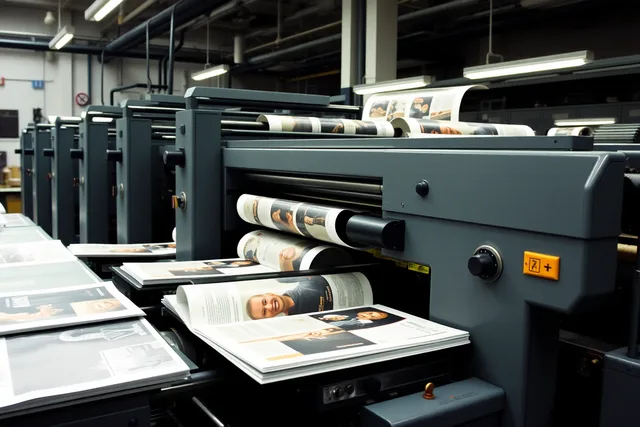
Photo and credit
1. Freeze the job definition
Write a one-page job sheet with issue name, trim, binding, page count, cover, text stock, colors, finishes, quantity, delivery points, proof requirements, file format, deadline, printer contact, and publisher contact. Attach the printer's dated instructions.
Job Sheet Fields
- Issue name and trim size
- Binding and page count
- Cover and text stock
- Colors and finishes
- Quantity and delivery points
- Proof requirements and file format
- Deadline and printer contact
Resolve page-count and binding conflicts first. Confirm whether covers are supplied separately, whether blank pages must remain in the PDF, and whether files are single pages or spreads. Confirm who creates spine art and any gatefold, insert, or die-cut files.
2. Audit the source document
Check the document in reading order and in a page-panel view. Look for missing pages, accidental blanks, duplicated folios, wrong section starts, overset text, hidden layers, off-page objects, missing links, low effective image resolution, and inconsistent page dimensions.
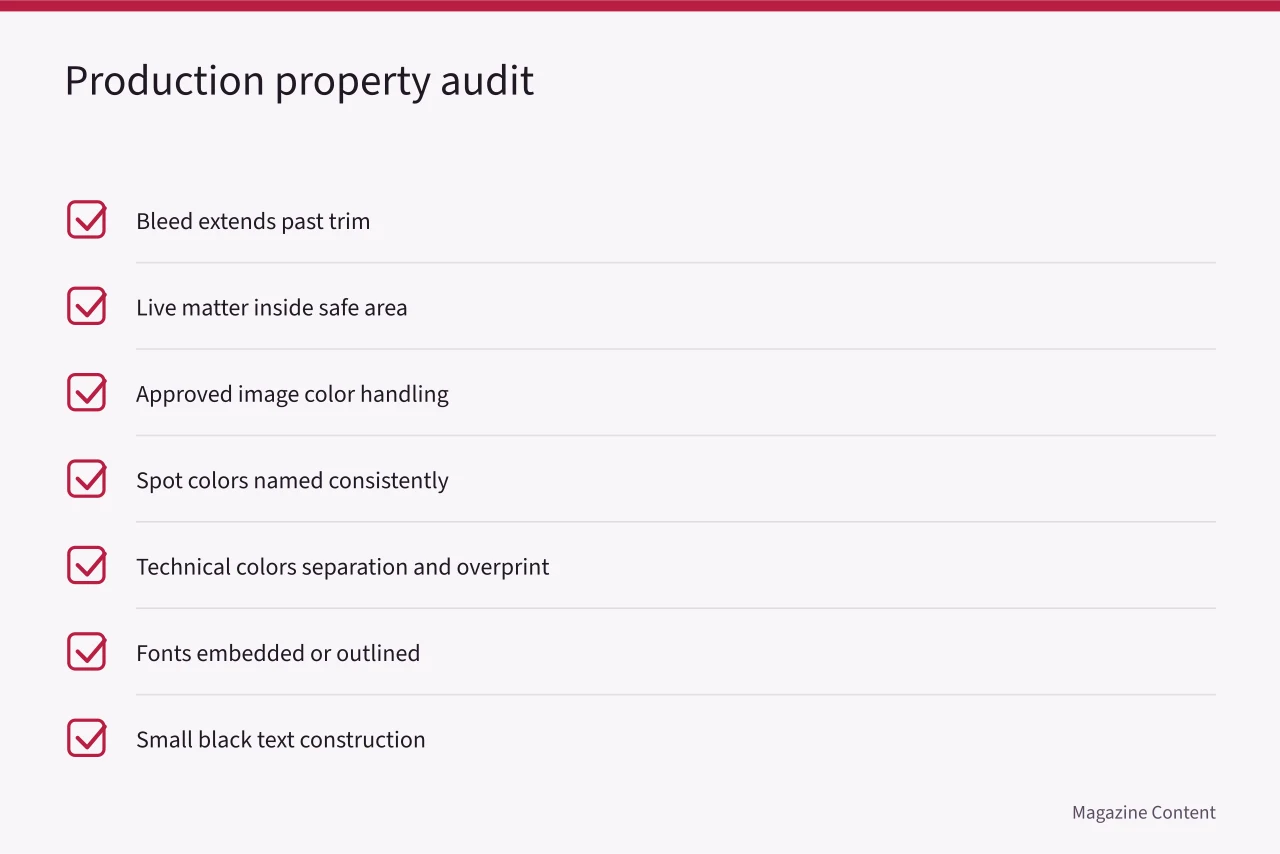
Then inspect production properties:
Audit the source document
- bleed extends far enough where art reaches trim
- live matter respects the printer's safe area
- images use approved color handling
- intentional spot colors are named consistently
- technical colors are set to the required separation and overprint behavior
- fonts meet the printer's embedding or outlining rule
- small black text uses the approved black construction
- transparent effects and placed PDFs separate as expected
Do not use a generic checklist value when the printer has supplied a different requirement.
3. Export a controlled candidate
Save the source, update the version, then export with the printer's preset. Use a filename that identifies publication, issue, component, version, and date. Keep candidate files away from the release folder until they pass review.
Exporting spreads for visual convenience can create a manufacturing error if the printer expects single pages. Adding crop marks can also be wrong if the printer's workflow adds its own marks. Follow the stated delivery convention.
4. Preflight in two passes
First run automated preflight against the printer's profile. Review every warning rather than accepting a green summary from an unrelated profile. Second, inspect the rendered PDF manually at high magnification and as full pages. Automation can identify properties, but it cannot decide whether a crop changes meaning or a caption sits beside the wrong picture.
Two-Pass Preflight
- Run automated preflight against printer profile
- Review every warning, not green summary
- Inspect rendered PDF at high magnification
- Inspect rendered PDF as full pages
- Check separations, overprint, ink coverage
- Confirm page count and dimensions from PDF
Use the output-preview tools available in the production software to inspect separations, overprint, ink coverage, trim boxes, and spot plates. Confirm the page count and dimensions from the PDF itself.
Wikipedia's preflight in printing defines it as confirming that files needed for printing are all present, valid, correctly formatted, and of the intended type.
It calls this a standard prepress procedure to remove costly errors before production, not after. Its limit: preflight answers whether the file is the right kind of object, not whether the page is right.
5. Order proofs for named questions
One federal magazine specification illustrates how precise a proof contract can be: the GPO's Humanities magazine production specification distinguishes soft proofs from digital color proofs, sets proof-production conditions, and describes four-color process plus specified Pantone work. It is an example, not a default for another printer.
Proof Approval Matrix
Review
- Editorial PDF
- Managing editor
- Technical preflight
- Production editor
- Color proof
- Art director
- Folded dummy
- Production editor
- Final release
- Publisher's delegate
Approver
- Editorial PDF
- Text, order, captions, credits
- Technical preflight
- File compliance and separations
- Color proof
- Color target and image treatment
- Folded dummy
- Trim, bulk, binding, crossovers
- Final release
- Authority to manufacture
Decision
- Editorial PDF
- Technical preflight
- Color proof
- Folded dummy
- Final release
Create an approval matrix:
Order proofs for named questions
| Review | Approver | Decision |
|---|---|---|
| Editorial PDF | Managing editor | Text, order, captions, credits |
| Technical preflight | Production editor | File compliance and separations |
| Color proof | Art director | Color target and image treatment |
| Folded dummy | Production editor | Trim, bulk, binding, crossovers |
| Final release | Publisher's delegate | Authority to manufacture |
Mark every proof with filename, version, profile or condition, date, and purpose. Corrections written on an unidentified printout are not a controlled approval.
6. Correct and verify
Enter corrections in a numbered log. Make each change in the source document, export a new candidate, rerun preflight, and verify the specific correction plus any nearby effect. Pagination changes require a full page-order review. Color or transparency changes require a fresh separation check.
When reviewers disagree, record the decision and owner. Do not merge contradictory annotations silently.
7. Release and confirm receipt
Move only the approved file into the release location. Send a manifest listing filenames, sizes, page ranges, checksums if used, and expected proof stage. Ask the printer to confirm receipt, successful processing, and any warnings. Archive the sent file, job sheet, preflight report, approvals, and correction log together.
Common questions
Should crop marks be included?
Only if the printer requests them. Bleed and page boxes matter independently of whether visible marks are present.
Can a PDF be corrected directly?
Minor edits are technically possible, but controlled source correction is safer because it preserves a reproducible master. If direct editing is unavoidable, document it and archive the changed file separately.
Does an online proof approve color?
Not unless the parties have defined a calibrated soft-proof process. Many online proofs are intended for content, pagination, and gross defects.
What should happen after upload?
Obtain a receipt and processing confirmation. Silence does not prove that the correct file opened without warnings.